A bank we connect to
Find it, sign in, and your first import starts right away. You pay once we can read your bank.
1 Connect a bank
Join, connect your bank, and your charges come in on their own.
Where to find it: Connected accounts, on the Accounts workspace.
Your sign-in details go straight into a locked vault, and no person can read them. We can read your accounts, and we cannot move your money. A bank not listed? Add it while you join. Which banks connect is on the Bank status page, and how we keep your data private on the Trust page.
Accounts
Find it, sign in, and your first import starts right away. You pay once we can read your bank.
Give us its name and your sign-in details, and we set up the connection. We email you once it works and your first import is ready. You can wait to pay until then.
Upload a statement from any bank as a file, and Alyva remembers its layout. A loan or cash with no feed is added by hand.
2 The books
Every charge is matched to a shop and filed under a category as it arrives. There is nothing you have to do.
Where to find it: Needs a category, on the Transactions workspace.
Most charges land in the right place on their own. The few Alyva can't place wait for you in Needs a category. Move a shop to another category, and its past and later charges follow.
Rules, notes and tags are there if you want them, and none is needed. A rule files every charge that matches it. A note says what one charge really was, and the assistant reads it too.
Sorted for you
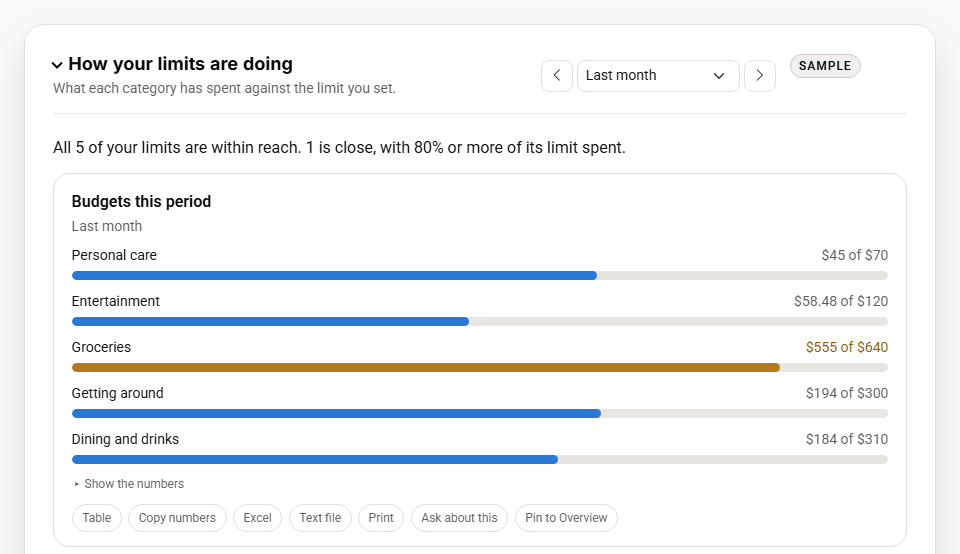
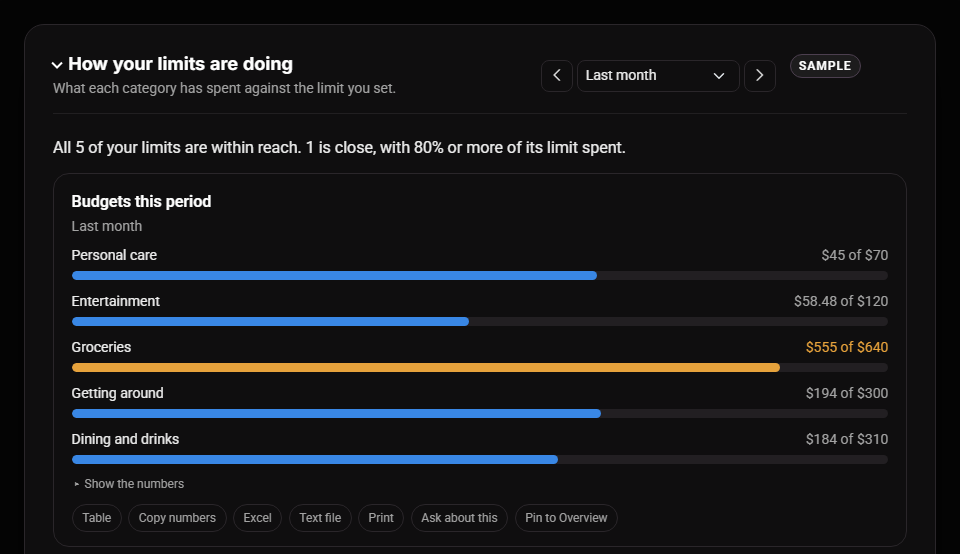
A limit is how much you mean to spend on a category each month. Alyva suggests one from what you really spend, and nothing is set until you say so.
Where to find it: Your limits and Budget review, on the Budget workspace.
Each limit fills as you spend through the month, with a warning as one gets close. Mark each category as a need or a want, with savings and debt planned on their own.
Ask for a review, and Alyva proposes new limits: needs are never cut, and wants give way first. You accept, keep or edit each line.
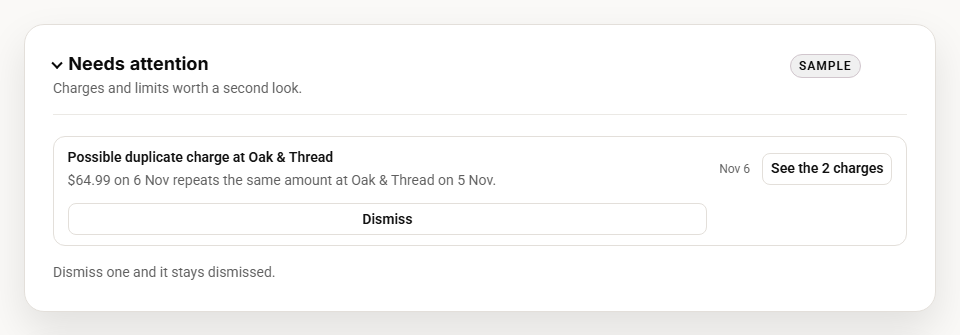
Alyva points out what you may want to check.
Where to find it: Needs attention, on the Alerts workspace, and Repeating charges, on Transactions.
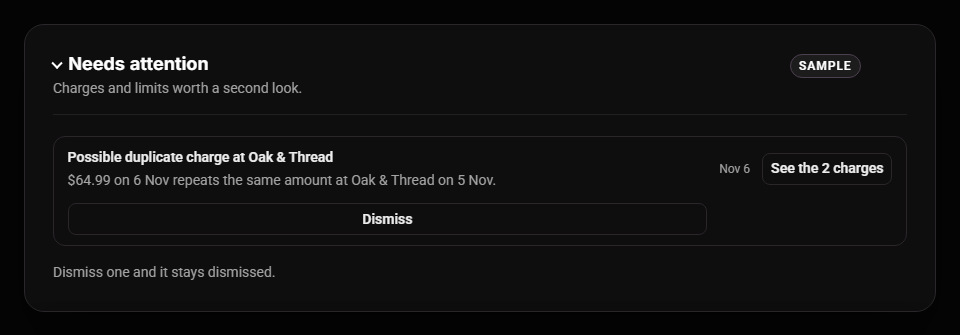
The same amount twice at one shop, or a charge far above the usual, is raised for you to check. Mark one as a duplicate and it leaves every total but stays in the list.
Subscriptions you forgot and bills due soon are found in your own charges. You do not have to keep a list.
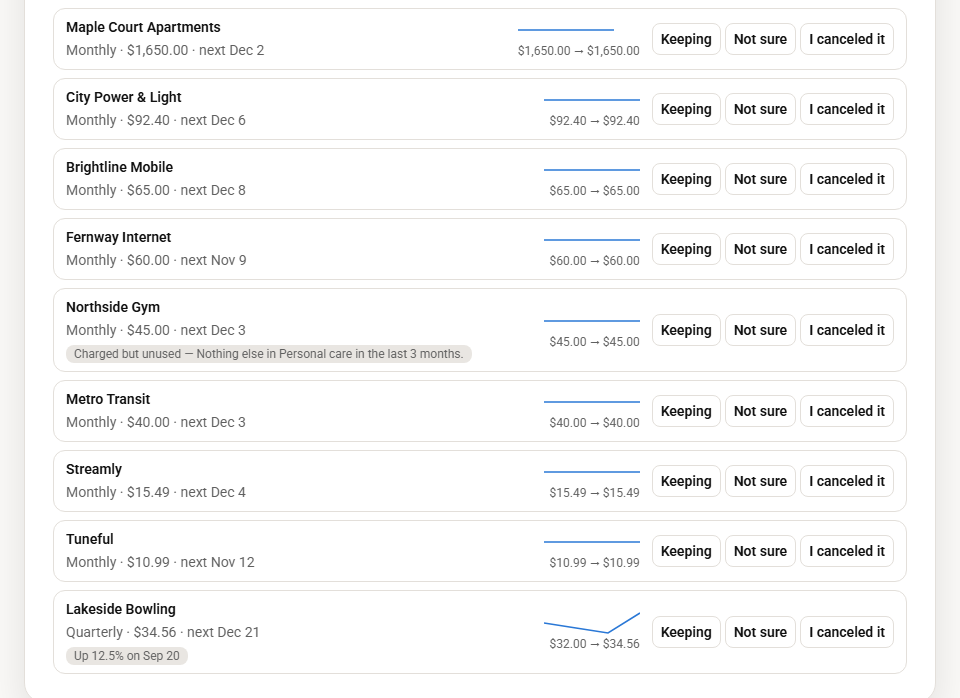
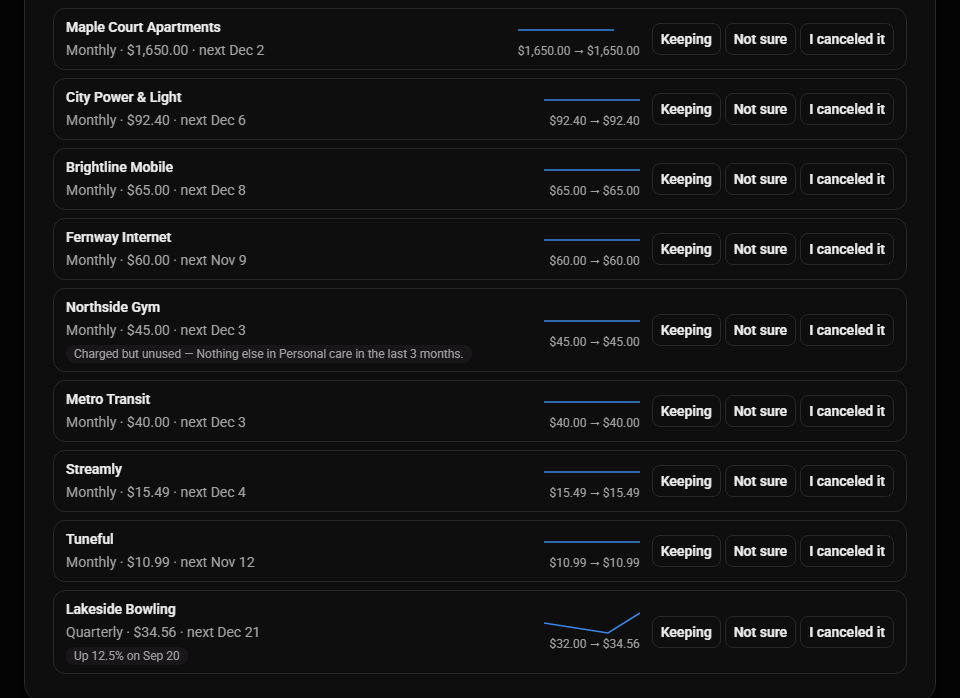
You find out where the money went without opening anything.
Where to find it: Written reports, on the Overview workspace, where any report can be shared with a link.
The weekly report
Dining out is at $210 of its $300 limit.
Every Sunday, your week in figures by email. Where the money went, what came in, and how each limit stands.
Once a month, a longer look back at the month before.
When you are paid, a short note on what is not yet planned through the next payday.
3 The assistant
Where did the money go? Can I afford this? The answer comes with the figure behind it.
Where to find it: the chat, with Your pinned charts on the Overview workspace.
Ask for a chart and it is drawn from your own figures. Pin it to a page to keep it.
Copy any table, or download it as a spreadsheet or a text file. Ask how Alyva works too, and it answers from the same help you can read.
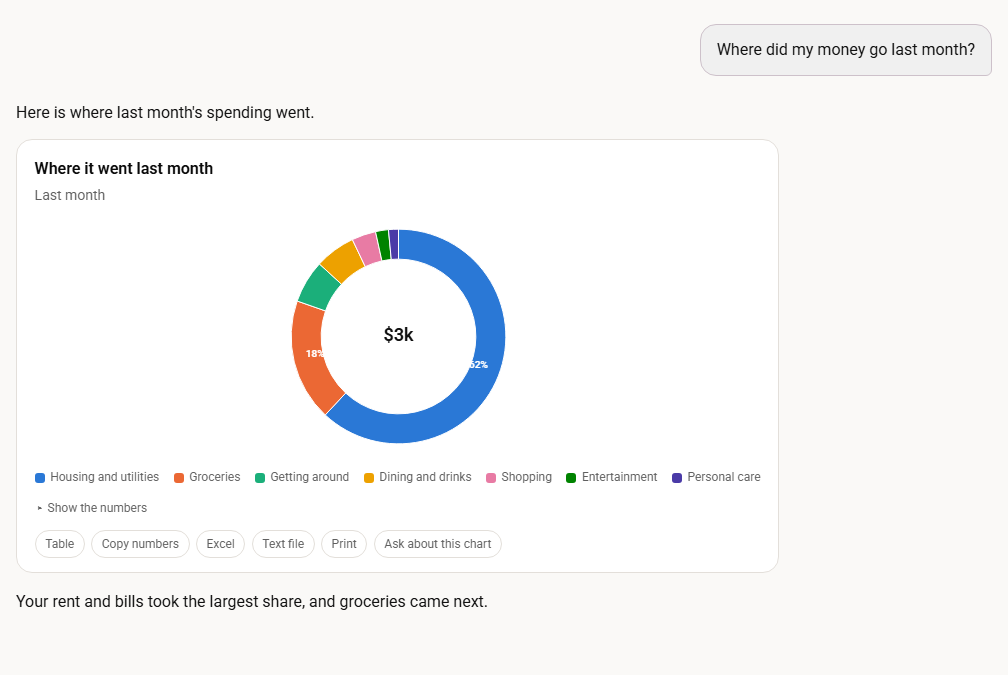
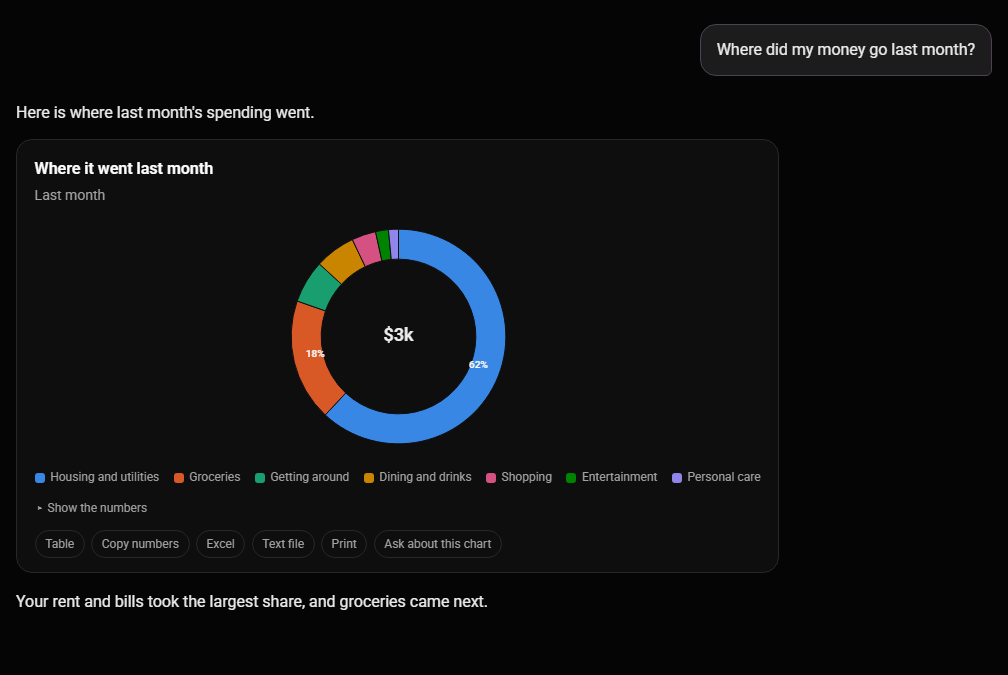
Tell the assistant what you want done, and it does it for you. It can set a limit, change a goal, file a charge, add a note or move a panel.
Where to find it: the card in the chat, and Recent changes.
It shows you the change first, and what it replaces. Nothing is saved until you press Confirm.
Changed your mind? Most changes can be undone from the same card, or from Recent changes.
A change to confirm
Dining out limit from $300 to $250
The assistant keeps a short list of facts about you, like how you are paid or what you are saving for.
Where to find it: Settings, under Assistant and Privacy.
Every fact is in your Settings, in plain words. Change, pin or delete any of them.
Turn it off in Settings too, and it stores no new facts.
What the assistant remembers
Goals
Saving for a house deposit by late 2027
Preferences
Prefers short answers, no jargon
Situation
Paid twice a month, rent due on the 1st
Yours to edit or delete, whenever you like.
4 Goals and planning
Tell Alyva what you are saving for, and it works out what it takes to get there.
Where to find it: Savings goals, Life events, Debt payoff and Not yet planned, on the Budget workspace.
House deposit
$13,400 of $20,000
Target: October 2027.
Give a goal a target and a date. Alyva works out the monthly amount and shows if you are on pace.
Mark a move, a new job or a baby, and your figures start again from that point.
See when what you owe will clear, and what the interest costs on the way.
What is left once bills, needs and your goals are kept back. It is never your whole balance.
Every page in the app is a column of panels, and you choose which ones it shows.
Where to find it: the Workspace group in the sidebar, and Add a panel on every workspace.
Move a panel, fold one you rarely need, or take it off. Your layout follows you to every device.
Start a new page with the panels you use most. Or ask the assistant to add or move a panel, then confirm it.
Overview
Missing something you need? Tell us.